Quickstart
Sign up, fine-tune your first model, and download a GGUF you can run locally, all in about 15 minutes.
This walkthrough takes you from a fresh account to a fine-tuned model running on your laptop. You will not need a GPU, a Python environment, or a credit card to follow along on the free tier. By the end, you will have a quantised GGUF file you can load into Ollama or any llama.cpp-compatible runner.
The whole flow runs inside the browser. Ertas handles the GPU, the training loop, the conversion to GGUF, and the download. You only need a dataset and an idea of what you want the model to do.
Before you start
You will need:
- An Ertas account (free tier is enough to complete this guide).
- A small JSONL dataset, or you can use the recommended dataset that Ertas attaches by default.
- A modern browser. Ertas is tested on Chrome, Safari, and Firefox.
If you want to test the resulting model locally, install Ollama ahead of time. The GGUF that Ertas exports is Ollama-ready out of the box.
Prefer to let your coding agent drive?
If you would rather stay in your editor, paste the prompt below into your coding agent (Cursor, Claude Code, Codex, OpenCode, or similar) and have it walk this Quickstart with you and wire the result into your project.
You can follow the manual steps below at the same time. They are the ground truth for what the agent is doing.
1. Set up your dataset
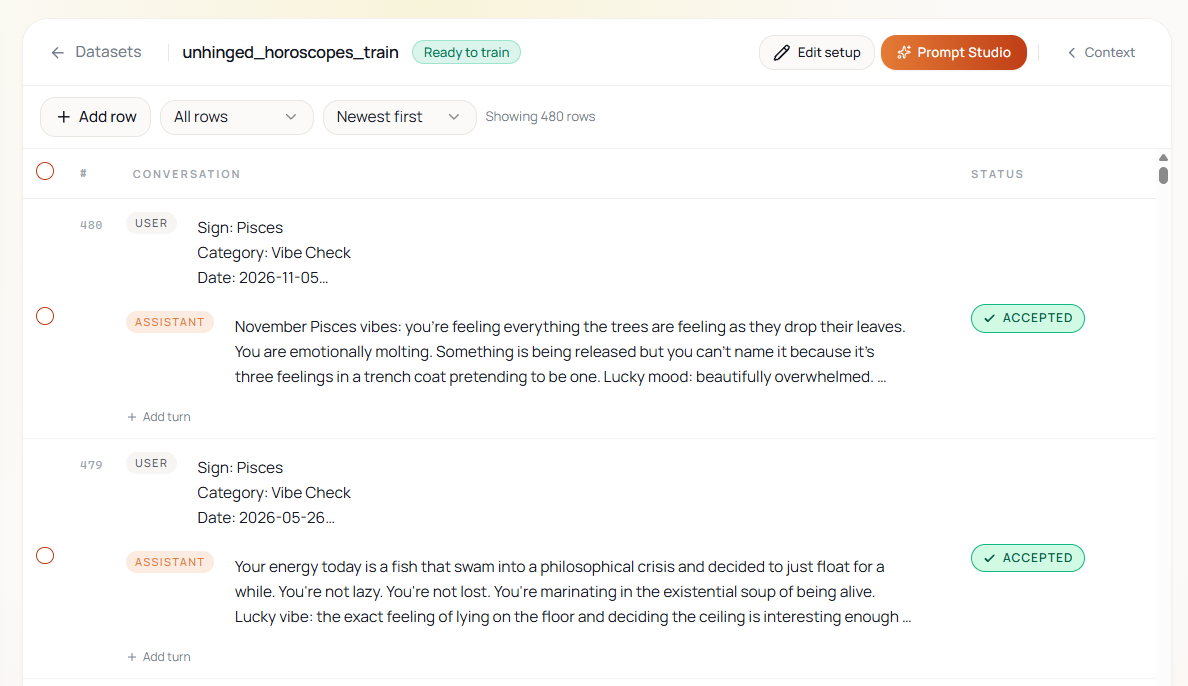
The fastest path is to use one of the recommended datasets that Ertas surfaces in the dataset picker. They are real public datasets from Hugging Face, validated and ready to attach with one click.
Open the Data Craft tab
Sign in to Ertas, then click Data Craft in the top navigation. The dataset list starts empty.
Pick or upload a dataset
For this guide, attach Alpaca Cleaned (51,760 instruction-following examples) from the Recommended list when you open the dataset picker on the canvas. If you have your own JSONL file, the Upload button in the Data Craft tab accepts files up to your plan's dataset size limit. See JSONL format for the expected schema.
2. Build a fine-tune recipe on the canvas
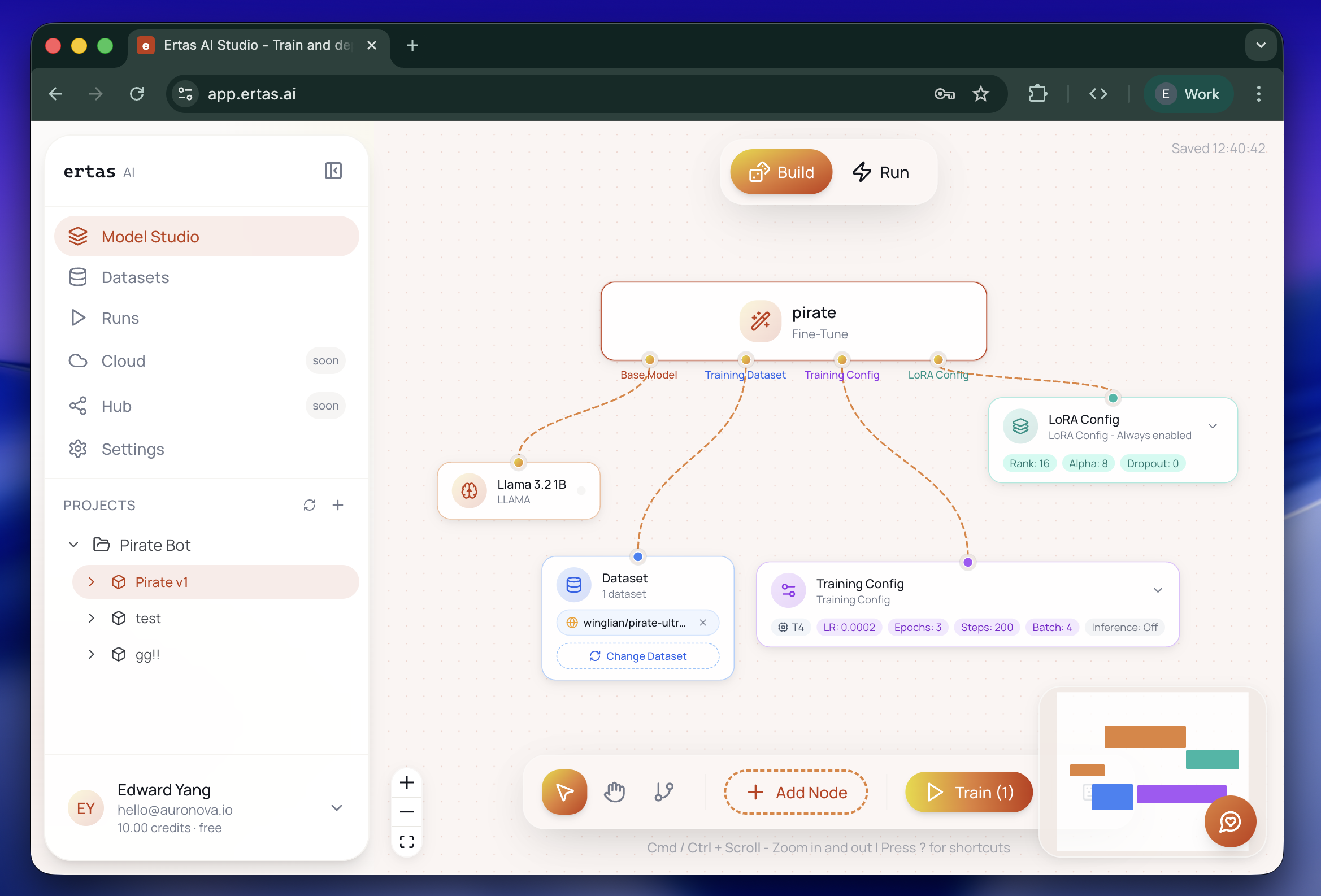
Studio uses a node-based canvas. A "recipe" is one Fine-Tune module connected to four child nodes: a base model, a dataset, a training config, and a LoRA config.
Open the Model Studio
Click Model Studio in the left rail. The canvas opens in Build mode.
Add a Fine-Tune module
Click the action module picker in the bottom toolbar and pick Fine-Tune. A new module lands on the canvas with four hanging dashed lines, one for each leg.
Attach a base model
Click the + under the red Base Model leg. In the picker, choose one of the Free-plan models so it fits the T4 GPU. Phi-4 Mini (3.84B) is a strong default: it trains quickly on T4, quantises to under 2.5 GB, and is capable enough for almost any instruction-tuning task. Other good Free-plan picks: Llama 3.2 3B Instruct, Qwen 2.5 3B Instruct, or Qwen 3.5 4B if you want the most capable option Free allows. The picker shows a lock badge on models that need A10G, so you cannot accidentally pick one that will not run on Free. Supported models lists which is which.
Attach the dataset
Click the + under the blue Training Dataset leg, then pick the dataset you set up in step 1.
Accept the default training config
Click the + under the purple Training Config leg. The defaults (200 max steps, 2e-4 learning rate, batch size 2, AdamW optimiser, T4 GPU, GGUF conversion enabled) work for nearly every first run. Press Apply Configuration.
Accept the default LoRA config
Click the + under the teal LoRA Config leg. Defaults are rank 16, alpha 32, dropout 0, and target modules covering attention and MLP projections. Press Apply Configuration.
Your canvas now shows a Fine-Tune module with four connected child nodes. All four legs are green. The play button on the module is active.
3. Run the training
Press play
Hover the Fine-Tune module and click the green play button. A confirmation dialog summarises the run and shows the estimated cost in credits. Confirm.
Watch the Run panel
The canvas switches into Run mode. The Run panel slides in from the right and shows your job as Queued, then Waiting for GPU, then Training. Loss and step counts update live. Runtime varies with base model, dataset size, and config; a 200-step T4 run on a 3B-class model typically lands somewhere between 15 and 35 minutes of active training, plus queue and provisioning time on top.
Wait for completion
When the run finishes, the status flips to Completed. The estimated runtime shown at queue time is usually within a minute of reality.
Credits are charged only while the GPU is actually attached. Queuing and provisioning do not bill. If a run fails on a compatible model, credits for that run are refunded automatically. See Credits and usage.
4. Download your bundle
Expand the completed run. You will see two download buttons:
- LoRA: a PEFT-compatible bundle containing the adapter weights, tokenizer, chat template, and config. Useful if you want to merge into a different base or load via
PeftModel.from_pretrained()in your own code. - GGUF: an installable ZIP bundle that contains the quantised
model.gguf, a pre-builtModelfilewith the right chat template and stop tokens for your base model,install.bat/install.shscripts, and aREADME.txt.
Click GGUF and the bundle streams down to your machine. For a Phi-4 Mini fine-tune the ZIP is roughly 2 to 3 GB.
5. Run the model locally
Install Ollama if you have not already and make sure it is running. Then extract the downloaded ZIP and run the installer.
# Right-click the ZIP, choose "Extract All...", open the extracted folder,
# then double-click install.bat. Keep the window open while it runs.

# When it finishes:
ollama run fine-tune-<your-model>-<date>
The Ollama model name matches the extracted folder name (lowercased, non-alphanumerics converted to hyphens). The bundled Modelfile is pre-filled with the correct chat template, stop tokens, and the temperature / top-p you set in Training Config, so the model is ready to chat as soon as the installer finishes.
Ask the model a question that matches the dataset's style. If you trained on Alpaca Cleaned, try a single-turn instruction like "Summarise the plot of Hamlet in two sentences." The model should respond in the instruction-following style of the dataset rather than the base model's default behaviour.