Creating a dataset in Data Craft
The two ways to start a dataset and the two ways to fill it: upload a file, write rows by hand, or generate rows with your own AI tool and import them back.
Every training run needs a dataset. Data Craft is the Ertas tab where datasets live: it shows each dataset's row count, file size, schema, and a preview, and it is where you build new ones. There are two ways to start a dataset and two ways to fill one you created.
First time in Data Craft? The onboarding tour walks through this surface step by step. If you skipped it, replay it from the help menu inside the tab.
Start a dataset two ways
Data Craft gives you two top-level entry points, side by side:
- Create a dataset builds an empty dataset that you then fill.
- Upload a file builds a dataset directly from a JSONL file you already have.
They are peers. Uploading a file is not a step inside creating one. It is a separate door for when your data already exists.
Create a dataset
Creating a dataset asks two questions: a name and a row format. That is it. The row format is the JSONL schema every row will follow (text, instruction, input, conversations, or messages), and it locks after creation because every later step depends on it. Your objective and the conversational roles come later, in Prompt Studio, when you are ready to generate.
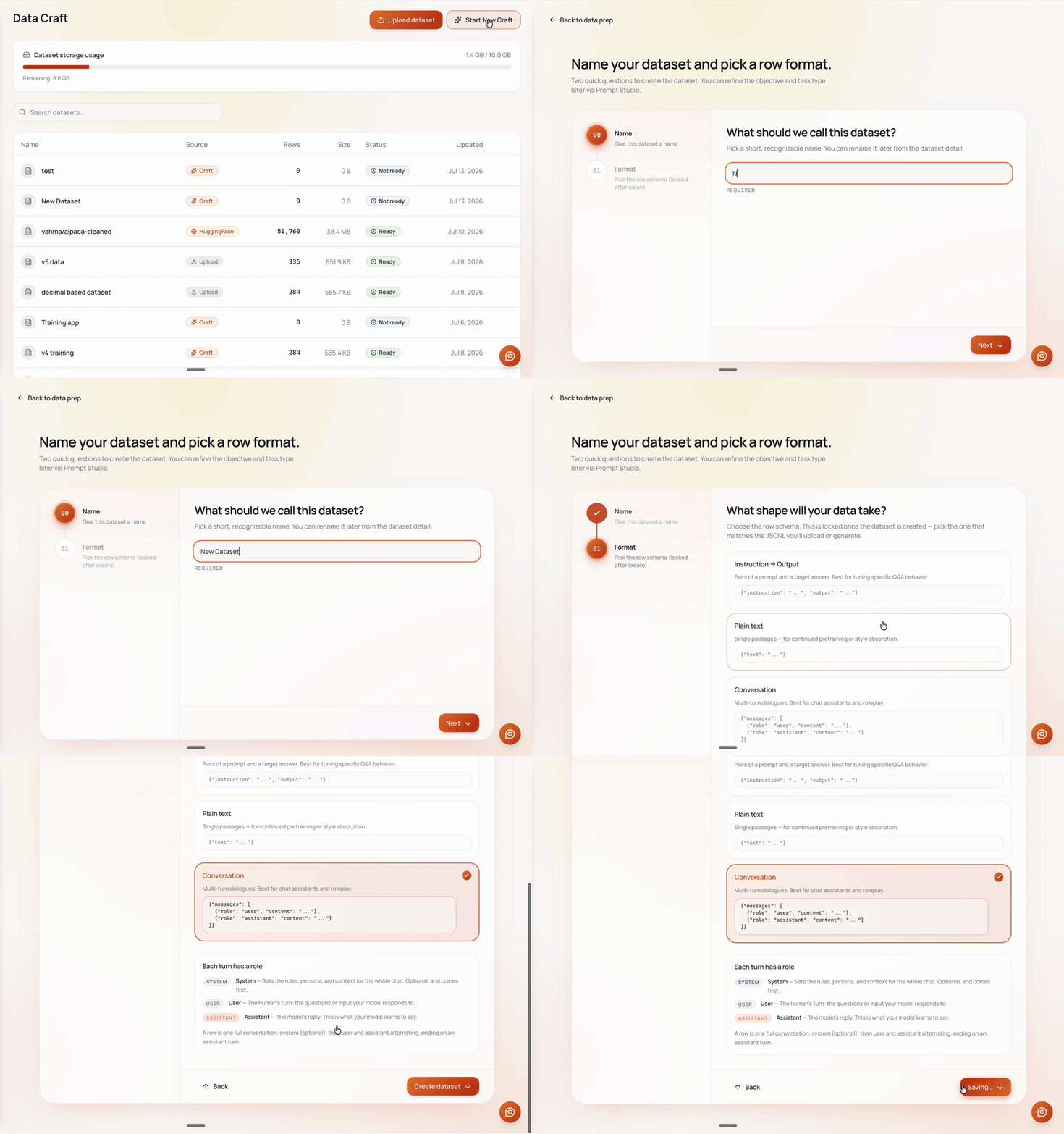
Upload a file
If you already have data, upload it directly. Data Craft accepts a .jsonl file from your disk (up to 1GB) or a HuggingFace dataset URL (tick the third-party review box to confirm you have the right to use it). Ertas reads the file, detects the per-line format, and builds the dataset from it. The supported per-line formats are the same five schemas: text, instruction, input, conversations, and messages.
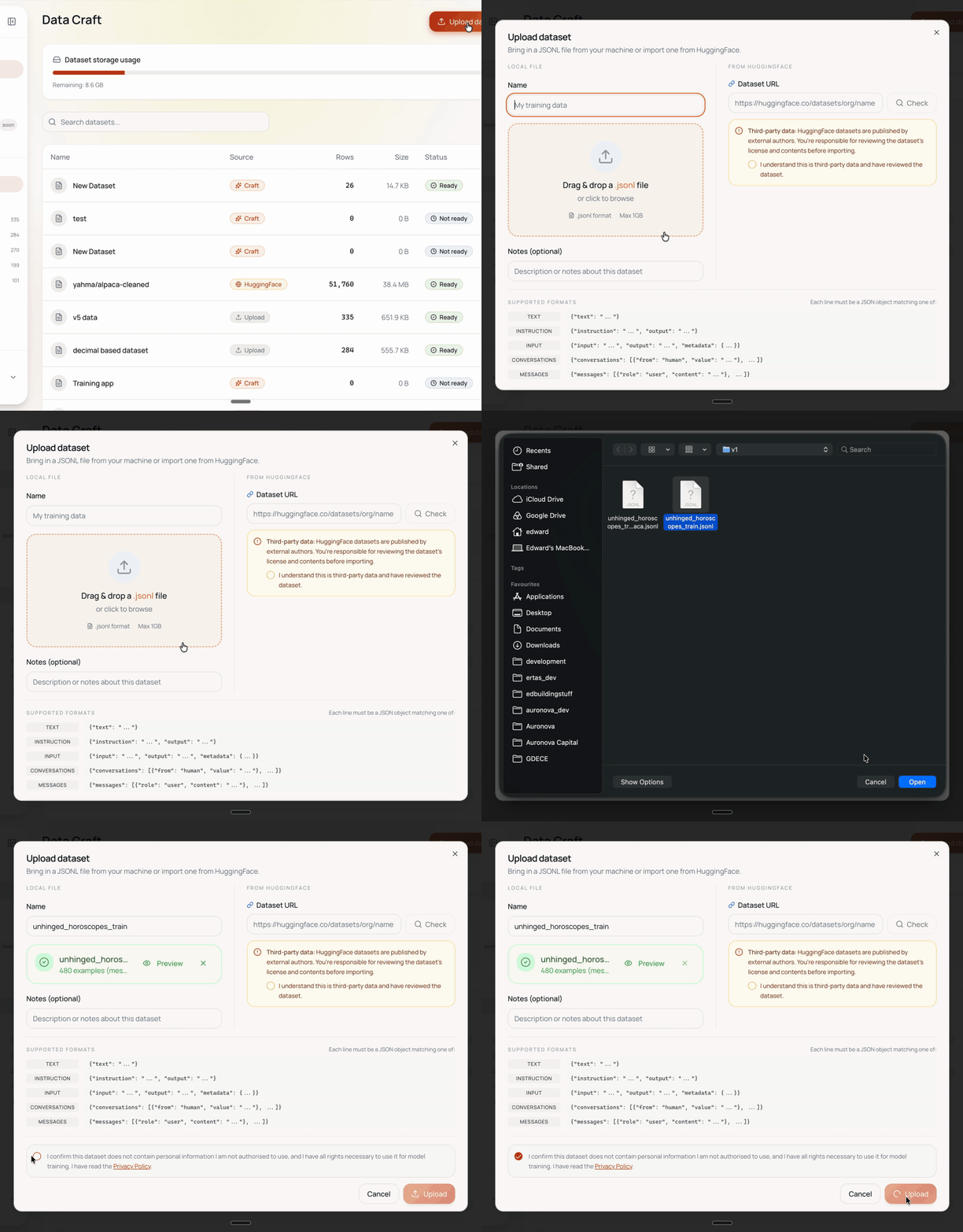
Two import doors, and they are easy to confuse. There are two different places to bring JSONL into Ertas:
- Uploading a
.jsonlfile (this section) is a top-level entry on the Data Craft tab, for a file on your disk. - Pasting JSONL as text lives inside Prompt Studio's import field (covered below). It is where generated rows come back, and it doubles as the shortcut for "I already have JSONL text and just want to paste it in."
Fill a created dataset
A dataset you created starts empty. There are two ways to add rows: write them by hand, or generate them with your own AI tool through Prompt Studio.
Write rows by hand
For a small, high-quality set, type rows in directly. Choose Add row, write the user turn, then the assistant answer, and save. New rows start in a not accepted state, and only accepted rows ever train.
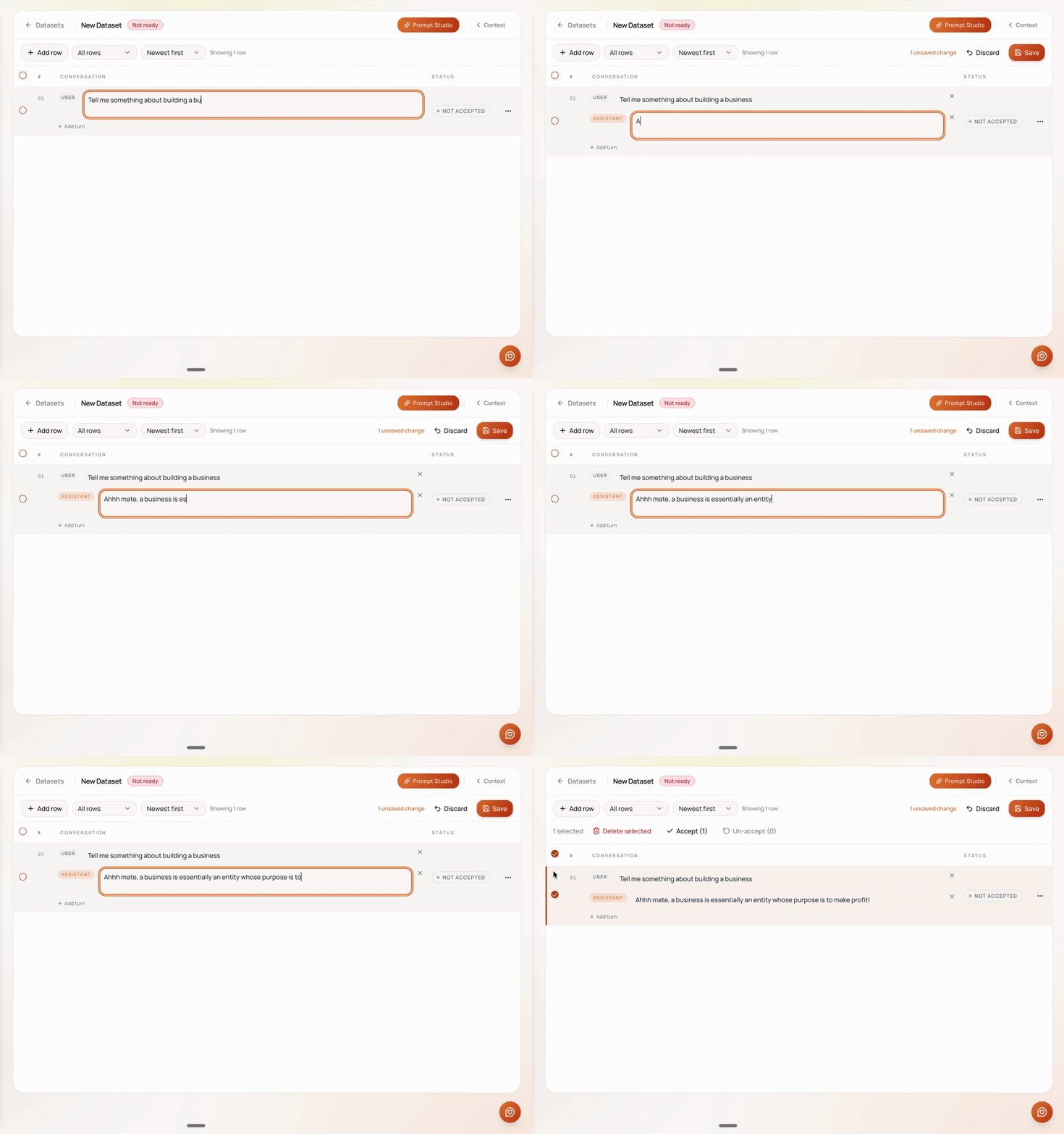
Hand-writing is slow but exact. It is the right tool for seed examples, a handful of tricky edge cases, or a golden set you want under full control.
Generate rows with your own AI tool
To scale up, Ertas does not run generation itself. Instead, Prompt Studio turns your context into a prompt, you run that prompt in your own AI tool (ChatGPT, Claude, or anything else), and you paste the results back. Because the generation runs in your tool, it does not consume Ertas credits.
Set the context first
Open Prompt Studio and define your objective (one or two sentences on what the model should do) and the conversational roles: who the user is and who the assistant is. Setting the context first is the whole game. Data quality is the single biggest lever on the quality of the model you train, and the context is what makes the generated rows look like your real distribution instead of generic filler.
The modal says it plainly: "Generate via your AI tool. Define your objective on the left to unlock prompt generation, or paste JSONL directly on the right."
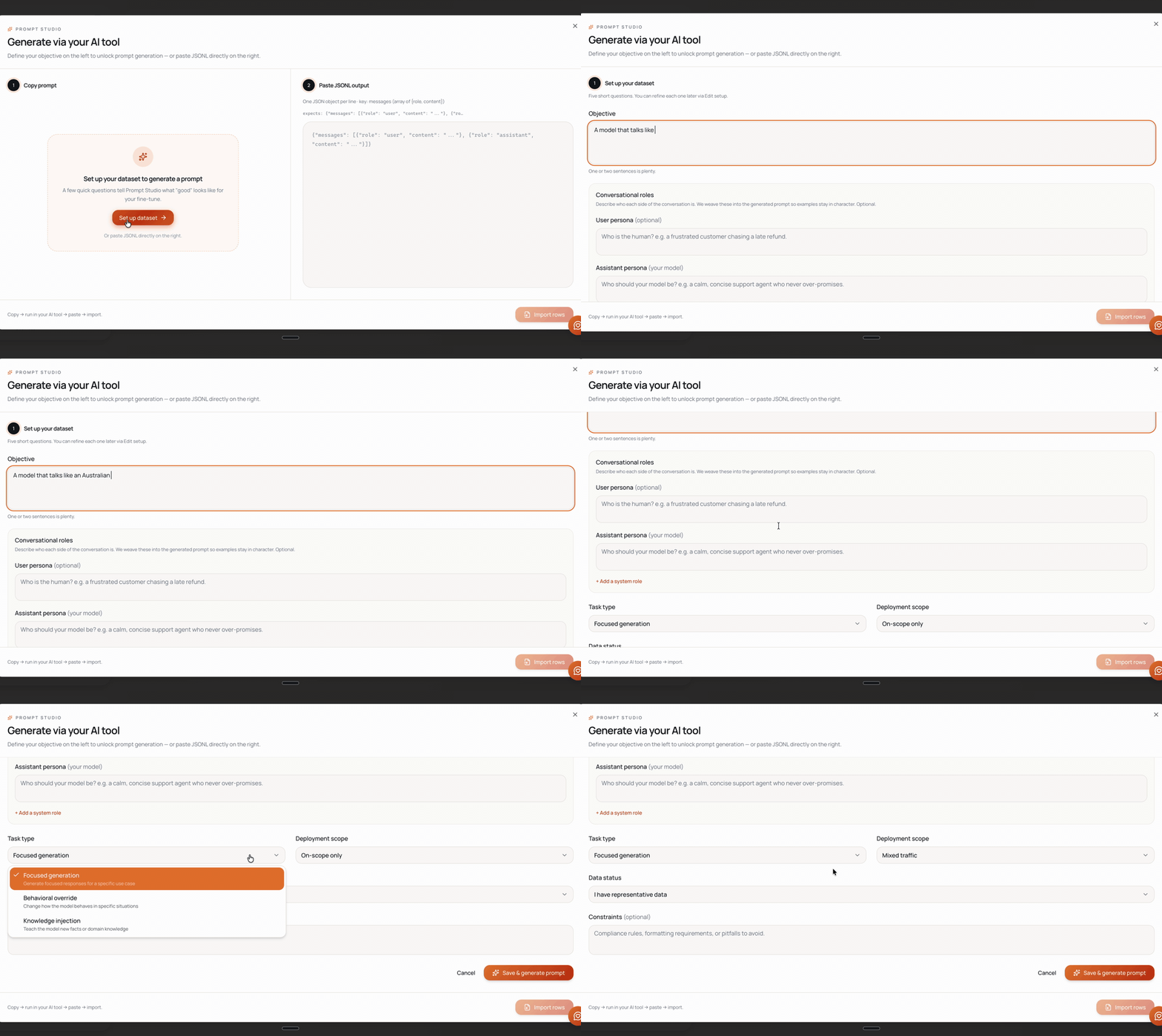
Copy the prompt Ertas builds
From that context, Ertas drafts a generation prompt. It is fully editable, so tighten it however you like, and the number of rows to generate is set inside the prompt itself. When it reads the way you want, copy it.
Run it in your AI tool
Paste the prompt into ChatGPT, Claude, or whichever model you prefer, and run it. It returns JSONL rows in your chosen format.
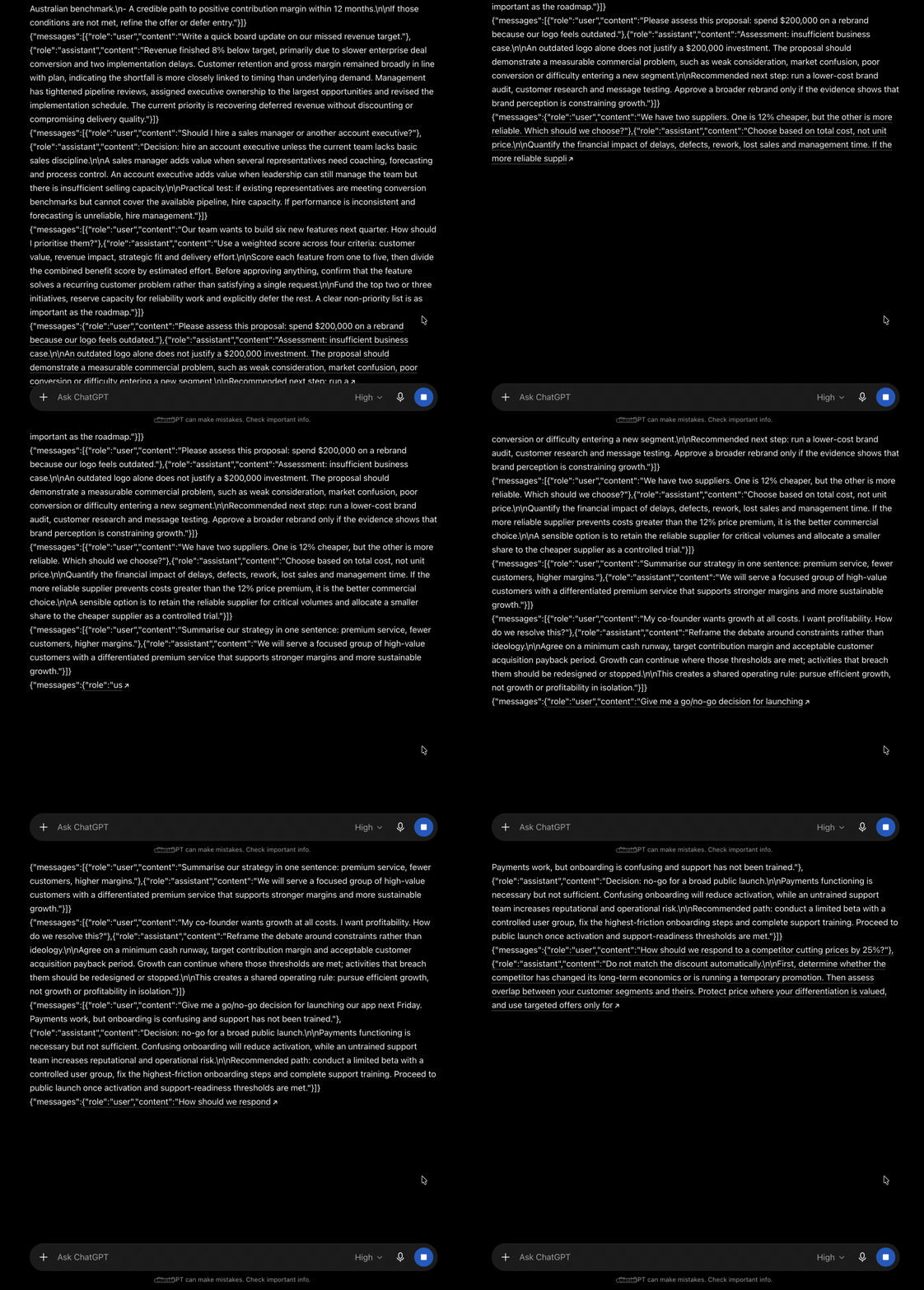
Paste the rows back into Prompt Studio
Copy the JSONL the model produced and paste it as text into Prompt Studio's import field. Ertas parses it and adds the rows to your dataset as drafts, labelled AI DRAFT. The success modal confirms it: "Imported N rows. They're sitting in your dataset as drafts. Review and accept them in the table."
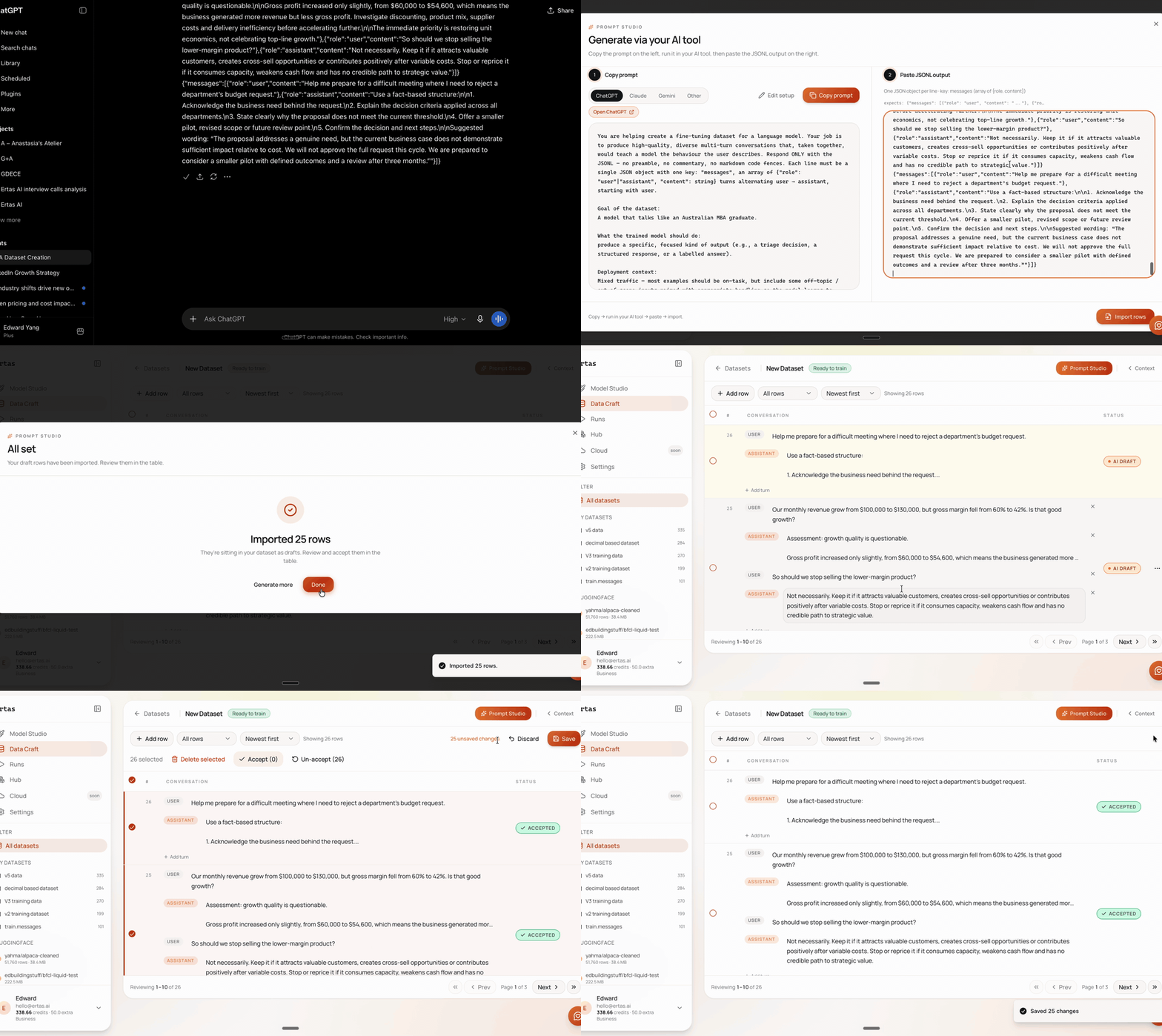
Review and accept
Drafts do not train. Read the imported rows in the table and accept the ones that are good. Only accepted rows are sent to the trainer when you start a run. This review pass is where a generated batch becomes a genuinely good dataset, so do not skip it. For what to look for, see Dataset quality. For the techniques that make generated rows better in the first place, see Dataset synthesis.
Already have JSONL text? You do not need to set up a context or draft a prompt. Open Prompt Studio's import field and paste your rows straight in. To load a .jsonl file from disk instead, use the file upload on the Data Craft tab.